Monday, September 5, 2016

How To Fix/Repair A Corrupted SD Card Or USB Flash Drive?

Fix/Repair A Corrupted SD Card Or USB Flash Drive: In this latest digital generation, SD cards have become the most convenient mode for portable data storage devices. That is, SD cards are the primary source that makes the storage, portable in various devices such as smartphones, digital cameras, tablets, and many other devices. Many of us use SD card every day to store pictures, videos, documents, messages, etc.

But, sometimes, users might face certain issues with these portable SD cards about the inaccessibility of data. SD cards might get corrupted, formatted or even damaged, which results in the disappearance of all the stored photos, videos, and other files. And it may make users feel heartbreaking.


Usually, this situation initiates with an error message. If not handled properly, it can leave you in a permanent data loss situation which causes difficulty in SD card recovery.

How can you tell that your SD card got corrupt?

Look for these following symptoms

  • While trying to access your photos or videos stored on the card, you may get error messages saying that ‘memory card error’ or ‘corrupt memory card’
  • You may find some of the photos on your SD card missing.
  • When you try to take a picture with your camera, you may not be able to do so, as a black screen appears along with an error message ‘SD card is not accessible. The file or directory is corrupted and unreadable.’
  • Or, when you try to read the SD card through a system, no folder appears, or all the folders do not open. It shows an error message saying, ‘Read / Write error on SD card’ which indicates that it cannot read from the device.
  • Even if your SD card is recognized by your PC, you may not be able to see any stored photos or videos. It shows an error message saying, ‘SD card is not formatted. Do you want to format it now?’
  • And, sometimes, you may be able to see the contents of your SD card in your camera as well as in your system, but you cannot copy those contents. You will get an error message saying that disk is “write-protected.”

But don’t worry. If any of these issues arise, there is no need to throw the USB Drive away – YOU CAN FIX IT!


How To Fix/Repair A Corrupted USB Flash Drive and SD Card?

Whenever your SD card or USB flash drive gets corrupt, there is no guarantee that you will always recover your data back. In the case of physical damage, you may not be able to repair it, but a software error can be fixed in some simple ways.

How To FixRepair A Corrupted SD Card Or USB Flash Drive (3)

Method 1:

At times, some of the devices may not read an SD card, due to some unexplained reasons. Therefore, try to connect your SD card to another device.


Method 2:

  • Insert the corrupted memory card into a card reader, and then connect the card reader to your system.
  • Go to “My Computer” and search for your SD card under “Devices with Removable Storage” and note the drive letter assigned.
  • Now open RUN on your computer (Click on the “start” icon and enter “search for program” then type in RUN).
  • Type in “CMD” in the provided text box to bring up a command prompt, from where you can fix your corrupt memory card
  • Type “chkdsk” followed by the drive letter corresponding to the SD card then by a colon and /r. (Example: Chkdsk e: /r)

How To FixRepair A Corrupted SD Card Or USB Flash Drive (1)

The ‘chkdsk’ command checks a disk for structure corruption. The e: tells it what drive letter to use and the /r tells it to repair the issues it finds.

  • After you press “enter”, the Chkdsk will check for possible errors and try to fix the corrupt SD card.
  • Follow the subsequent message prompts.
  • Chkdsk will report back what it has done and then go to my computer and check out your drive to verify if the files are recovered or not.

Method 3:

  • Insert the corrupted memory card into a card reader, and then connect the card reader to your system.
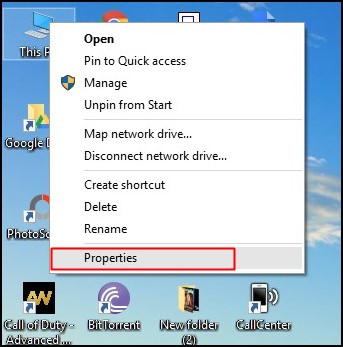
  • Right-click on the drive and select “Properties”.
  • If you can view the used space on the card and if it shows all or almost all free space, then either all the files have been deleted, or the directory has been erased.
  • In this case, you can use a Sandisk inbuilt solution that might restore all the deleted files easily.

Method 4:

  • If you can read all the files on the card but cannot save them, then your card might be in ‘write protected’ mode.
  • Hence, unlock the option to save or modify files on the card.
  • If still, you are unable to read/write to the card, then your files are possibly lost or have become inaccessible.
  • To fix/repair it, you can use a disk diagnostic tool that can work on memory cards too.
  • But, even though, you can get access to your card by reformatting it, it will erase everything on the card.
  • So, make sure that you have recovered all the stored files and copied everything to your system before formatting your SD Card.

Method 5:

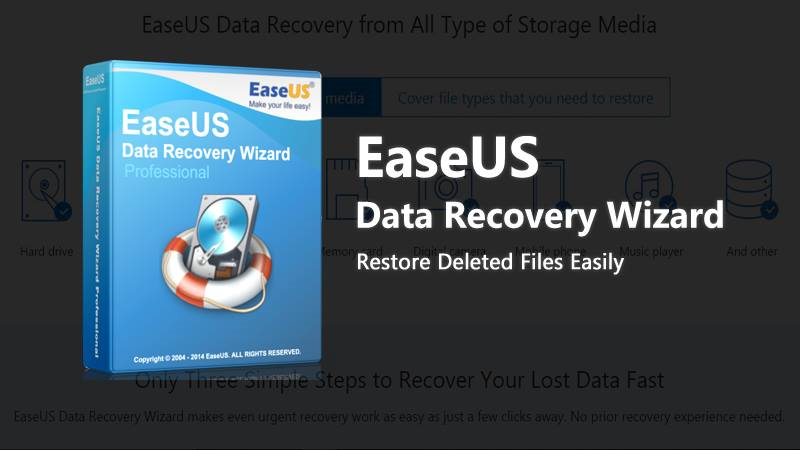
If you have accidentally formatted your SD card or deleted important files, don’t worry. There are many SD card recovery tools available online such as WinRecovery Software or EaseUS Data Recovery Wizard, which are efficient enough to restore your lost, deleted and inaccessible files from the SD card. You just need to choose the right tool among the number of available tools.


A Guide to Recover Lost, Deleted Data from SD Card

EaseUS Data Recovery Wizard is a popular data recovery tool that can recover deleted, corrupted, formatted or lost pictures, videos, music files, etc from the SD Card.

Step 1:

After downloading ‘EaseUS Data Recovery Wizard’, install and launch it on your computer. Then connect your SD card to your computer with a card reader.

Step 2:

Launch EaseUS Data Recovery Wizard and select the file types you want to recover. Then click on the “Next” button to move to the next step.

Guide to Recover Lost Data from SD Card (1)

Step 3:

Now, select the SD card and click on the “Scan” button. The software will quickly scan the selected SD card to find all your target files.

Guide to Recover Lost Data from SD Card (2)

Step 4:

  • After the scan, you can preview all the listed recoverable files one by one and select out those you want.
  • Then, click “Recover” button to get them back once.
  • Save all the recovered files on another place to avoid data overwriting.

Guide to Recover Lost Data from SD Card (3)


Quick Tips to protect your SD card:

  • Never remove a memory card while turning on/off your camera or any other devices.
  • Never remove the SD card while saving or viewing a photograph.
  • Never change your memory card when the camera is on.
  • Do not take or view new pictures when your battery is low.

NOTE: Memory cards have a limited number of lifespan. That is after certain cycles of write/erase operations, the chances of corruption increase. Therefore, it is better not to use SD card that has frequently been used for several years. Also remember not to use SD cards of low-quality. Use SD cards from big brands such as Kingston, Olympus, Panasonic, Samsung, SanDisk, Sony, Transcend, etc.


Wednesday, August 31, 2016

Free EaseUS Data Recovery Wizard Software: Restore Deleted Files

Free EaseUS Data Recovery Wizard Software: Restore Deleted Files

There are lots of heart rendering situation you have to face daily. I would like to discuss one of them i.e. when you lose your important data or your photos, videos accidently. Sometimes you feel very helpless when you are not able to retrieve your complete data back. 


Iwas also facing the similar situation when one of my friends accidently formatted my hard disk. After doing some research, I found out the best solution through which we can resolve almost every data loss problem. I am going to introduce you thebest data recovery software in the market.

EaseUS Data Recovery Wizard Professional:

It is the best data recovery software in the market as this will help you to recover your data deleting, formatting, partition loss, OS crash or virus attacking and gets you out of your misery. This recovery software also helps you to recover from almost any kind of storage device i.e. portable hard drives, media players and now this recovery software is also available in the form app in phones. Both Android and IOS user can have access to this application and can recover their data easily.  If you have formatted accidently then don’t you worry with the help of this recovery software, you can easily recover your data from the partition that have been formatted or lost or even hidden partitions.

If you have also deleted your files without any backup and data is also lost from recycle bins or servers. It recovers your files from PC/Laptop/servers very quickly. It also recovers data from the inaccessible part of your hard disk or raw hard drive, raw partition and partition loss. It is a very easy but a powerful data recovery wizard. As it has two different type of scan mode included in it i.e. quick scan and deep scan. A deep scan will help you to recover from that part of your hard disk that is hidden or inaccessible as it was also obvious by the name as well. EaseUS data recovery wizard is 100 percent safe to use and it will not overwrite your original data.

One of the fascinating features you will find in this software is that the option of a preview. You can specify your file type before scanning then you can restrict your filter search by also specifying the name/type/data so you can retrieve your data more easily and this ensure better recovery results.  If your data is stored on system disk then data recovery wizard with bootable is the best option as it is much safer to recover deleted files in case of secondary data damage.

How to use this recovery wizard:

The first step to recover your data is to first launch the program and then select the specific type of file type you wanted to recover.In the second step select the disk from which you have to recover the data and select the scan option.Now you only have to select the recovery option to get your data back safely.

Download Link: Click Here

I will highly recommend you to try this software for once as it has a very user-friendly interface. If you are non-tech type person, still you can operate this. By following only three steps, you can easily recover your precious data back.

Tuesday, August 30, 2016

How To Increase RAM Using USB/Pendrive In Windows 8 & 10

How To Increase RAM Using USB/Pendrive In Windows 8 & 10

Increase RAM Using USB/Pendrive In Windows 8 & 10 (2016)

Do You know? You can use USB/pendrive as ram in Windows 7, 8, 10. You don’t need any third party app to do so. We have discussed two working methods that will help you increase RAM using your pendrive. Go through the post to know about it.


Iknow it’s old trick but there are some people who are still not aware of it. As you all know what is a basic functionality of RAM on our PC/Laptop as the more RAM means more speed and faster your system’s speed. For gaming purpose, one needs more RAM. What if you don’t have enough money to buy new RAM and also sometimes there is no extra slot on your motherboard to setup new RAM. How will you upgrade you PC/Laptop’s RAM? Well, the answer is Simple, Today, We will share some tips  that will help you to Increase RAM Using Pendrive in Windows.


How To Increase RAM Using USB/Pendrive In Windows 8 & 10

#1 Method: Virtual Ram Concept For Windows

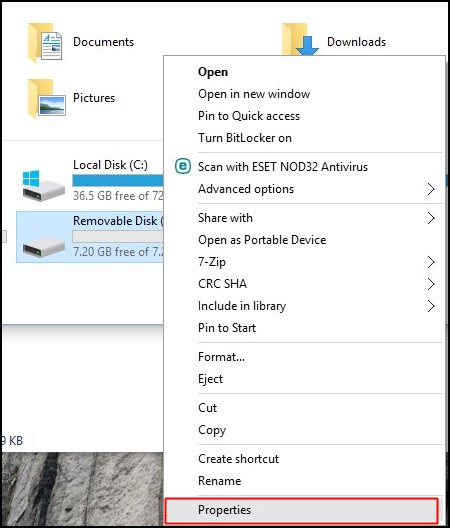
Step 1. First of all Insert Your Pen Drive. Then open My computer and Right click > Then openProperties.

Virtual Ram Concept For Windows

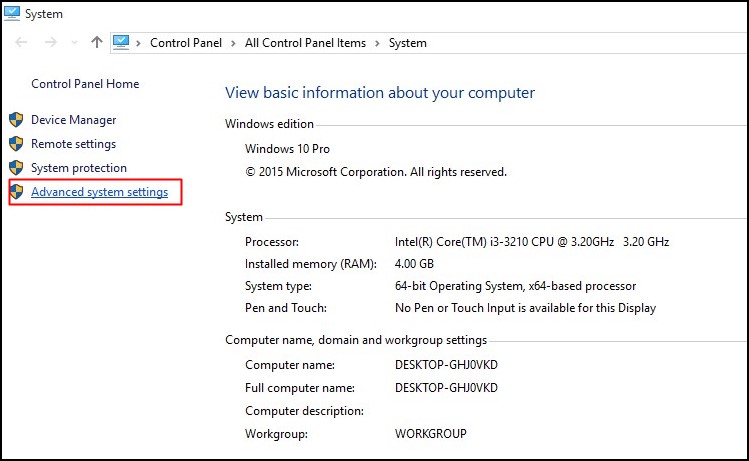
Step 2. Now Properties window will appear, then click on Advanced system settings from a left side.

Virtual Ram Concept For Windows

Step 3. Then in Advanced Tab click on SettingsButton appear in Performance tab.

Virtual Ram Concept For Windows

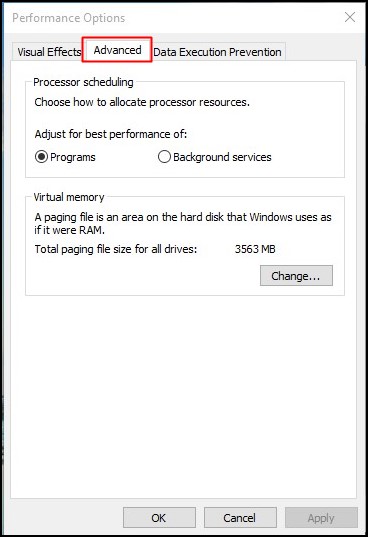
Step 4.  Again new window will appear then click on Advanced Tab.

Virtual Ram Concept For Windows

Step 5.  In Advanced Tab there is an option of theVirtual Memory box, Then click on Change Button.

Virtual Ram Concept For Windows

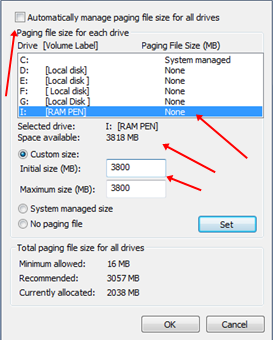
Step 6. Now uncheck the box of Automatically Manage Page size feature. Then in Custom size Add Your Pen Drive current same in below format. Now Add same Value in both boxes and click on Apply button.

Virtual Ram Concept For Windows

Note: If Your Pen Drive is of Size 4Gb then always add 10Mb less from currently available size. As I am using pen drive of size 4Gb and current space available is 3700 Mb then use 3690 minimum approx or remove more as you can because of it better of device safety.

Restart Your PC or Laptop and Now pen drive work as Virtual Ram. If you face problem in above method then can also follow below method which is easy to perform and work on Window 7, 8


#2 Method: Using ReadyBoost In Windows 7, 8, 10

Step 1. Firstly Insert your Pen Drive > Now Right click on your pen drive and Open Properties

Using ReadyBoost In Windows 7, 8, 10

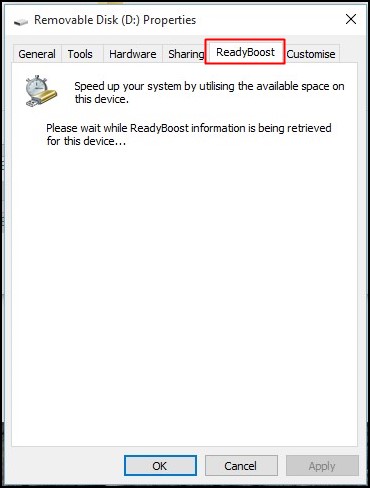
Step 2. Now you need to browse to ReadyBoostTab.

Using ReadyBoost In Windows 7, 8, 10

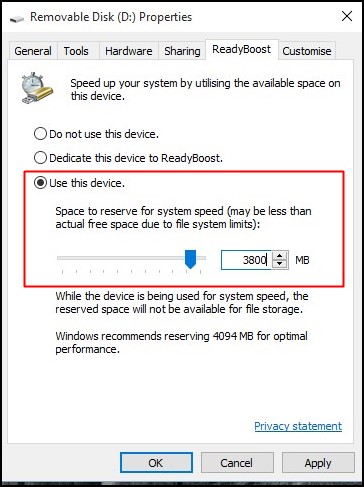
Step 3. Then switch to Use this device and reduce your current memory space. If your current device place is 4100MB then reduce it with approx 200-300MB.

Using ReadyBoost In Windows 7, 8, 10

Step 4. Then click on Apply button and all Done.

Using ReadyBoost In Windows 7, 8, 10

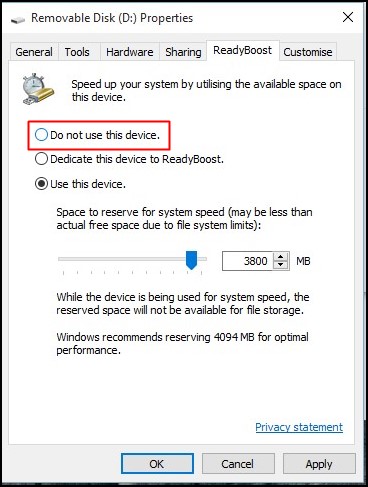
Step 5. In case if you want to change back your pen drive to normal then switch it back Don’t use a device in ReadyBoost tab.

Using ReadyBoost In Windows 7, 8, 10


Important Recommendations:

1. Always Safely Eject Your Pen Drive. Direct remove removal may lead to device damage.

2. In Virtual Memory method If you want to convert back your Pen into Normal Then Again open Virtual Settings And Remove custom memory value and choose Default settings by checking Automatically Manage Paging Size.

3. In ReadyBoost Method don’t forget to revert back to normal or otherwise open your pen drive and delete Readyboost file from your pen drive.


I hope you enjoyed both method discussed above. This will be very helpful to you if you have an pendrive. If you like this post share it with your friends! Leave a comment below if you need some help at the mentioned steps.

Thursday, August 25, 2016

How To Read Someone's Mind

Impress your friends and terrify your enemies, by pretending to read anyone's mind. It's not as hard as it looks — there are some well-worn tricks that can make you appear telepathic. Screw magicians and their lame fire tricks — we're way more impressed with someone who can guess your favorite movie just by staring into your eyes.

We spoke with Las Vegas' resident Mentalist Gerry McCambridge and he broke down the basic steps to wowing people with your powers of telepathy.

McCambridge, who has spent the last 7 years at The Planet Hollywood reading throngs of tourists, doesn't just pull information from your brain — he'll also tell you exactly how he got there as well. So we asked him to break down his methods step by step.

Select the right subject.

You can't just grab any old victim for a good mind sucking off the street. Rather, you should select your prey delicately. McCambridge elaborates:

"Some people want to be the center of attention. So, if I'm asking for people to come up on stage a lot of times it's those type of people. And they tend not to be the best assistants because they want to have their 15 minutes of fame at my expense. So I'm looking for people who may not come up on stage at the drop of a hat, but aren't [so] overly shy that they're going to stay in the audience. The first thing I'm looking for is somebody who is smiling and laughing at the jokes that I'm putting out there. There you have someone who wants to interact. Then you have the over-responders and that's someone I don't want necessarily right away. That's what you look for first, the type person."

Mirror the subject (make them comfortable).

Once you've snared your subject, woo them into a sense of security, by mimicking their ways.

"Make sure you try something that they are comfortable with. Do you have any artistic abilities? Then you can do something where you using drawing. You feel them out based on what you're going to ask them to do. Then you use an NLP (Neuro Linguistic Programming) technique called mirroring. Where you get them comfortable with you by mirroring the way that they're responding to you. People can pick up on that and they feel more relaxed around someone they feel is close to them. If they're a shy person and you're loud and obnoxious, they're not going to feel comfortable standing next to you. If they are a little shy and you back off and act a little timid yourself, introduce yourself nicely, it puts everybody at ease."

Know the statistics.

Know your stuff. In order to become and excellent Mind Reader, you need to up on the latest trends and tendencies of the mind. McCambridge has spent years documenting his shows, taking notes of the different ages of people in the audience, the cars parked in the parking lots, what kind of event it was. And he makes good use of all this statistical data.

"I know statistically how people are going to respond to certain situations. When I offer you a choice of 4 different objects I know 92% of the time you're going to choose the third one on your own. When you tell someone to think of a number between 1 and 10, statisically they are going to gravitate towards 7. If you ask someone to respond to a question very quickly, that changes the response. If I asked you to think of a color very quickly 1, 2, 3 — red is the statistical first choice. Blue is the second choice. If you ask for a color quickly, people go for red. If you ask for a color and you give someone a three or four second space, they will go for blue, because they will change their mind thinking red is the obvious choice."

Look for signs.

But you've got to be aware of basic responses!

"Look for reactions. For example [something I might try] is instruct the person to respond to what I say with the word no. No matter what I say, you respond with no. Then I'll say think of a number between 1 to 10, and I ask is it the number 1? No. The number 2? No. We go through the entire thing with No and I tell them that it's the number 6 because of the fact that they looked at me different when they were actually lying to me. They couldn't make eye contact [or something similar to that]."

Utilize the body.

Learn the art of muscle reading.

"Without the people realizing it, I'm touching them in a very relaxed way that they don't realize what I'm doing. Based on the questions that I'm asking them, I can tell what the answers are by feeling the difference in their muscles. You body echoes what your brain thinks. And I've learned how to pick up on the echoes. An example is I tell the person to think of a letter in the alphabet, and then the audience sing the Alphabet Song. By the time their finished I can tell what letter they have because the second the audience said their letter, their brain thinks to itself "that's it!" That changes the physiological response in your body and I can pick that up, it's different than the other 25 letters."

Don't be afraid to admit failure.

If you fall flat on your face, pick up and try again. The audience will love you even more for it.


The easiest trick in the book.

We'll tell you the name of the trick after you do it, because it spoils the reveal!

  • Pick a number between 1 and 10.
  • Multiply it by 9.
  • If it's a 2 digit number, add them together.
  • Now subtract 5.
  • Map the result to a letter of the alphabet, where A=1, B=2 and so on.
  • Think of a country which begins with that letter.
  • Take the second letter of the country and think of an animal which begins with that letter.
  • Think of the color of that animal.


Are you thinking of a grey elephant from Denmark?

Obviously this is titled the Grey Elephant from Denmark. We tried this on 3 people in the office and, one out of three guessed Grey Elephant. Our suggestion, do it in big group and the odds will be in your favor.


Tuesday, August 23, 2016

WiFi WPs Wpa Tester – Passwords

WiFi WPs Wpa Tester – Passwords
WPs Wpa Tester is a password-finding utility for WiFi networks whose near by you, connect quickly to the network of any establishment such as a restaurant, shopping or library, for example. You can also find private access points that were released.
It is not necessary for you to create an account to use the app, but stay tuned with the option “Share automatically Connected access points” that appears at the beginning. Leave this function selected will cause all passwords stored in your device are automatically shared with the people who use the application.
It works collaboratively and is fed with data from the users themselves. To find an access point released that is around, just press the button “WiFi Key Search” and wait until the scan is complete.
Above you gave a complete description about the Master Key and WiFi features, know now what we think of him
WPs Wpa Tester is a collaborative tool very interesting that could help you find WiFi access points shared. The app shares passwords stored in your phone and gives you access to thousands of passwords for routers, increasing the chances that you get a network near you.
Straight to the point
The interface of the app is intuitive and will not bring any difficulties. Right on the home screen are shown the networks of the area and just press a button to check if there is some point released for you to connect.
The search system of access points is a little time consuming (the scan takes about one minute for each network in range), but the wait can be worthwhile if you need urgently to connect to a WiFi network.
During our test, in Curitiba, we didn’t find any shared network near our location, but that doesn’t mean the application is bad. In General, central areas and places with shopping around may have greater chances of success.
The only problem is that Master Key WiFi all the passwords of your access points can be shared at the blink of an eye if you don’t pay attention. Although the idea of sharing WiFi is positive, it is important that your router and your network are correctly configured to reduce the risk of invasions and other security issues.

Monday, August 22, 2016

Meet The World’s First 8GB RAM Android Smartphone


Meet The World's First 8GB RAM Android Smartphone.

It has been about a year when we started talking about smartphones with 6GB of RAM. But at this time the next “trend” will be the smartphones with 8GB of RAM, yes, sounds pretty monstrous, as it should be and LeEco Le 2s will probably be the first 8GB RAM Android smartphone.

Meet The World’s First 8GB RAM Android Smartphone

Last year, we started talking about smartphones with 6GB of RAM. But at this time the idea seemed misplaced in a short time, even some manufacturers have already begun to bet this amount of RAM in smartphones like the Vivo Xplay 5 which was the first and recently the OnePlus 3 from OnePlus.
According to some information, the next “trend” will be the smartphones with 8GB RAM and LeEco Le 2s will probably be the first. Yes, LeEco which is also known as Leshi Internet Information & Technology, a Chinese technology company which is headquartered in Chaoyang District, Beijing.
As we told that the LeEco, formerly known as LeTV, is one of the largest Chinese companies acting in various areas, from online TV, video production and distribution, smart devices and applications for ecommerce and much more.

LeEco Le2S
LeEco Le2S
The company has designed one of the most powerful smartphones for the users and upcoming market, after the launch of LeEco Max2, now there are indications that confirm the rumors of LeEco Le 2s and very soon the company will launch the first Android smartphone with 8GB of RAM.
The images published on the website GizChina, show the front of the device where you can see an edge-to-edge screen and a camera in front along with the sensor.
Rumors also indicate that this super smartphone will have a rear camera of 25 MegaPixel a SoC Snapdragon 821, 64GB of internal storage memory and a biometric reader or fingerprint reader at the rear.

LeEco Le2S Leaked
LeEco Le2S Leaked
However, the fact is that 8GB of RAM and a SoC Snapdragon 821 will definitely raise the popularity and demand bar of the smartphone segment to a new “territory”.
But, it is not yet clear when the Chinese company LeEco will announce the smartphone, but the rumors suggest that the LeEco will soon announce the device at any event in the near future, so it may possible that the event could take place in August or September this year, 2016. Until then we have only one choice, let’s wait to know that when the first smartphone that will boast the equal amount of RAM that basically comes nowadays in most PCs and laptops.

Sunday, August 21, 2016

Visiting Torrents Sites? Be prepared For 3 Years in Jail, Rs 3 Lakh Fine


Visiting Torrents Sites? Be prepared For 3 Years in Jail, Rs 3 Lakh Fine

As we all know, Government has banned almost every popular torrent websites in India. According to the latest reports visiting torrent websites can get you 3 year in Jail.


Visiting Torrents Sites? Be prepared For 3 Years in Jail, Rs 3 Lakh Fine

According to the reports from India Today, visiting torrent sites and another website that is blocked by the government could land you in prison for 3 years along with Rs three lakhs ($4468) as fine. In simple words, Indian Government doesn’t want you to watch or download files that are copyrighted.

The Indian government has already blocked numerous websites with the help of Internet service Providers (ISP) but people do visit those blocked websites using various techniques like changing the IP Address or using VPN.

Earlier if you ever opened any blocked site then the blank screen displays the message “This website/URL has been blocked under instructions of the Competent Government Authority or in compliance with the orders of Hon’ble Court”

Now if you do visit any of the block sites you will get to see something like

“This URL has been blocked under the instructions of the Competent Government Authority or in compliance with the orders of a Court of competent jurisdiction. Viewing, downloading, exhibiting or duplicating an illicit copy of the contents under this URL is punishable as an offence under the laws of India, including but not limited to under Sections 63, 63-A, 65 and 65-A of the Copyright Act, 1957 which prescribe imprisonment for 3 years and also fine of upto Rs. 3,00,000/-. Any person aggrieved by any such blocking of this URL may contact aturlblock@tatacommunications.com who will, within 48 hours, provide you the details of relevant proceedings under which you can approach the relevant High Court or Authority for redressal of your grievance.”


Visiting Torrents Sites? Be prepared For 3 Years in Jail, Rs 3 Lakh Fine

Earlier most websites were banned in India using DNS-filtering which was actually easy to bypass using any third-party DNS services. However, Government has taken help of big companies like Tata Communications and Airtel in order to attain their “Blocking” Goal.

However, blocking illegal websites is a good step and the message seems threatening too. But it fails to provide any clarity on how it would be enforced. Internet users in India need to be careful while browsing the web and it’ll be better to stay away from blocked websites.


Wednesday, August 17, 2016

Duo, Google’s Video Calling App Goes Live; Will Take On Skype

Duo, Google's Video Calling App Goes Live; Will Take On Skype

The tech giant Google recently launched a fresh 1-to-1 video calling app which is dubbed as Google Duo. The new video calling application from Google has a unique feature known as Knock Knock which simply lets you see the video feed of the caller before receiving the call along with the end-to-end encryption for all the video calls.


Duo, Google’s Video Calling App Goes Live; Will Take On Skype

At present, there are already various platforms that already allow us to perform video calls with particular emphasis on Skype, Facetime, and even Google Hangouts. But the tech giant company Google today launched its latest app known as Duo which is an application for simple video calling that simply allows the eye to eye contact with anyone.

Currently, the tech giant Google already started offering its new application for video calls, Google Duo. This new application allows faster visual communication regardless of the type of mobile device and links quality.

Google Duo

Another innovation is the feature “knock knock”, which shows who is calling even before the call is answered. As we told earlier that the tech giant Google already started offering its new application known as Google Duo a video calling app which is currently available for both the platform Android and iOS.

Here’re few essential facts about the Google’s latest video calling app which is known as Google Duo:-

It is Based on your phone number : The Google Duo is based on the user’s phone number so that you can easily access all your contacts without the need to create an account.
‘Knock Knock’ Feature : With the ‘Knock Knock’ feature you can see in advance on video that who is calling on the other hand, even before answering the call. The ‘Knock Knock’ feature works only with people who appear in the contact list and can be disabled by the user.
Wi-Fi and phone calls : The transitions between Wi-Fi and mobile data in Duo will be carried out without any problem. It means that we can start a video call on a given network and switch to another without there being any interruption.
Video calls One on One : The Duo focuses on video calls one on one instead of group calls.
Lightning Videos: With the Google Duo you can easily optimize all aspects of a video call so that there is a faster connection than the most web applications and communications. In addition, the sound and video are always synchronized even in slower networks or connections.
Designed to run on slower connections : Works well on slower connections, such as those present in emerging markets, so it can be used in any networks.
Safe : In all calls, the tech giant Google enabled and added the end to end encryption for video calls just like the WhatsApp and Facebook Messenger.


Tuesday, August 16, 2016

Booyah-Video chat app for WhatsApp

Booyah is video chatting made easy – there’s no signups, no friend requests and no problems  Just one tap to invite your WhatsApp friends or groups and you’re good to go. It’s free, private, secure and incredibly easy and fun to use.

Download Booyah  from the Google Play Store.

To use the video conferencing feature, the individual or group of contacts need to have Booyah installed on their devices. The interesting thing about this app is that only WhatsApp contacts can receive and accept invitations for video calls, differentiating Booyah from other video conferencing apps on Android.

For those worried about security, the developer assures that no personal information is collected and whatever happens on Booyah stays on Booyah, and not saved on WhatsApp or the user’s device


How to Recover Deleted Files On Android


How to Recover Deleted Files On Android

There are lots of applications available on the internet on a particular thing but how to choose best one among them? Therefore, today we will be sharing the top best android data recovery tools  that will help you to recover deleted files on android. Go through the post to know about it.


Sometimes we remove some important files or data. As many people use the android smartphone and keeps their important daily use files or data in it. But what if you delete data on your android ? In PC you can recover data when you delete it you can easily restore it from Recycle Bin. Moreover, when you permanently deletes files on your PC then you can easily recover them by any hard drive recovery tool.

Coming back to post that is How to Recover Deleted Files On Android. You can also recover files of android by some recovery tools. There are lots of applications available on the internet on a particular thing but how to choose best one among them ? So, today I’m sharing the top best android data recovery tools  that will help you to recover deleted files on android.

How to Recover Deleted Files On Android

#1 Dumpster

Dumpster

The dumpster is Just like the Recycle Bin on your desktop computer. It is one of the best tools for recovering accidentally deleted the file from your smart Android. It can recover all deleted file on your android. It also very easy to use because of it’s user-friendly interface. It has following features :-

Restore deleted pictures, music files, videos and pretty much almost any file type (pdf, mp3, doc, Avi, mp4, jpg, png, rar, ogg, txt and much more:No Rooting needed but if you do, you get improved performance.No Rooting needed but if you do, you get improved performance.Internet connection absolutely not required.NEW: Recover uninstalled appsRestore Dumpster backup files with a single tap.Preview deleted photos, videos, and audio files before recovering.Send files to Dumpster using “share” or “send to” from any file manager or gallery app out there.Scheduled auto-clean of old deleted items.Protect your privacy with a special lock screen and access restriction.

You can get the full tutorial of How to Use Dumpster to temporary store deleted files that you can restore.

Note: It can recover only when it is already installed on your android before the delete of your files/data.

#2 ES File Explorer

ES File Explorer

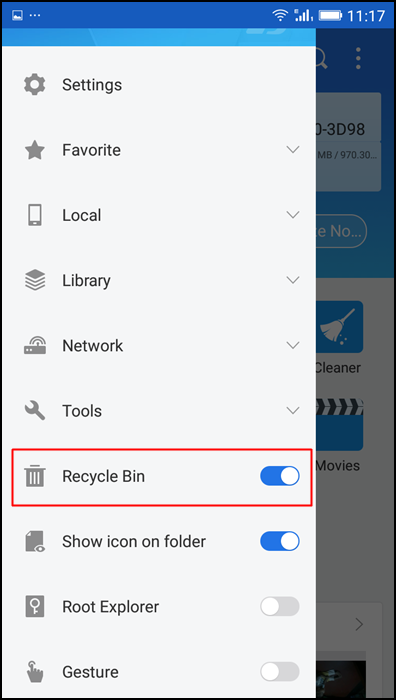
The another method to restore deleted file is one of the best android file managers. This file manager is full of features and one of them is Recycle Bin.  I will also recommend you to use this application as the file manager.

How to Recover Deleted Files On Android

You can easily find the Recycle Bin option just by opening its tool menu. You have to ON it to use the Recycle Bin option.

#3 Recover Files from Android SD Card Using PC:

Recover Files from Android SD Card Using PC

Sometimes you accidentally format your SD card on you android or sometimes your SD card got  corrupted. It can recover photos and videos from SD cards on Android devices, as well as contacts and messages on SIM cards.


#4 Android Backup

Android Backup

Due to many securities vulnerabilities, it is beneficial to secure your android data as it can undoubtedly be corrupted even with a single virus. It will also help you if you accidentally deleted android files.


So, this is all about Recover Deleted Files On Android phone. With This, you can easily recover deleted files from your Android Smartphone. If you are facing any problem or needs any help just comment it below I will try my best to help you. Share the post to your friends too!

Sunday, August 14, 2016

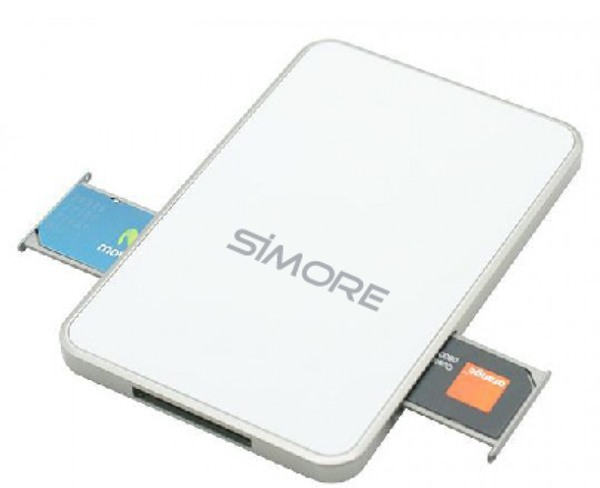
How to Convert your Single-SIM Smartphone into Multi-SIM With Simore


Convert your Single-Sim Smartphone into Multi-Sim Phone

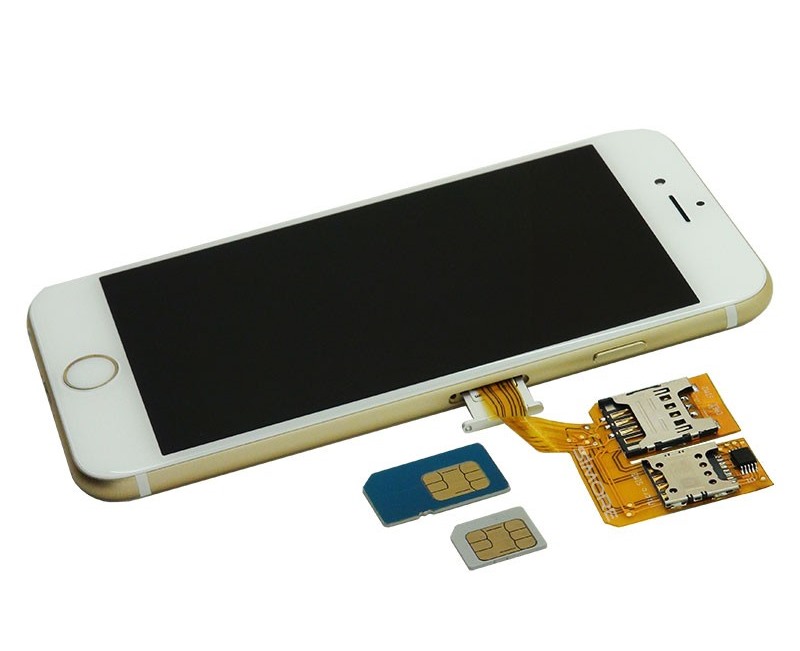
You could hence use that piece of great small hardware that can easily transform any single sim smartphone into a multiple SIM smartphone. And for that you need to follow our article to implement this for your device.

It could be a great hassle for those people who are having a smartphone that only accepts the single SIM card hence making it difficult to manage different SIM cards easily within a single device that could prove to be non-worthy for business people etc. So for those people who are using up the single SIM smartphone but are working with multiple SIM cards through different devices, there is a method by which they can easily transform their smartphone device into multiple SIM supporting device. Here in this article that is given below we have discussed about that method by which anyone can convert it’s Single SIM smartphone into Multiple Sim smartphone.


Steps To Convert your Single-Sim Smartphone into Multi-Sim Phone:

1.First of all you will has to buy up the “Simore (SIM + More) for your device. You can get it on the online product selling websites and you can also find it on Amazon too. This could be really a very cheap alternative to changing the device so as to get the multiple SIM functionality on the smartphone device.

2. After you have your Simore Multi-sim holder, you will now have to connect it to your smartphone. To connect it to your smartphone you won’t need any external connector etc. Just directly connect it to the smartphone either through the default sim holder of your device or through the bluetooth (depending on the type of sim holder). The one with bluetooth can be a great option as you won’t need to modify your device. Just depending on your needs you can get that type of SIM holder for your device and all shall work very well.

Convert your Single-Sim Smartphone into Multi-Sim Phone

3. After connecting the sim holder to your device, you can now insert the multiple sim cards in the Sim-card holder. This will automatically read your Sim cards and you will be able to work with them on your device. Your smartphone will also automatically show up the connected Sim cards and let you use them easily.(For bluetooth holders it requires to install up the mobile app on your smartphone).

4. Thats it you are done, now you have device that supports multisim access in it.


So above discussion was all about Convert Single-Sim Smartphone into Multi-Sim Phone. You should note that there will be no need to either switch off your device everytime you want to change up the currently active SIM, just select up the SIM through the options that will be placed in the options of the device settings. So, go and use up this method and hence make your device a multiple SIM supporter for upto 5 SIM cards. And Hope you like my article, keep on sharing with others too. Leave a comment below if you have any related queries with this.


Friday, August 12, 2016

How To Reinstall Windows Without Losing Data


How To Reinstall Windows Without Losing Data

If you are going to reinstall Windows OS then you must follow few steps to save data loss while reinstalling windows as drivers, system files and lots more as they get deleted when you reinstall Windows OS.
Here’s how to reinstall windows, migrate your important settings and leave the clutter behind. If you have to reinstall then it’s necessary to make the process safe to avoid data loss. As most of the users think that all their data will get deleted if they go for reinstalling Windows 10, but you can easily avoid this. So, in this guide we will be discussing on the same and tell you the way by which you can easily make the proper arrangement of data to avoid data loss. So have a look on complete guide discussed below to proceed.

How To Reinstall Windows Without Losing Data

You’ll have to collect a few things before you begin. So follow the step by step guide to proceed with this.

Steps To Reinstall Windows Without Losing Data:

  1. Firstly you’ll need your recovery tool. If you’re using the version of windows that came with your PC you owned then it’s probably in a hidden partition contains the information necessary to restore the hard drive to its factory condition.
  2. A hard-drive partition is not something that you have to gather. But if your PC is few years old, the recovery tool may be on one or more CD’s or DVD’s instead. Find the discs that came with your PC.
  3. If you have upgraded your Windows version since you bought the PC for instance, going from lower to higher version the upgrade disc is now your recovery tool.
  4. If you can’t find a recovery disc, and the PC has no hidden partition (or offers no workable way to access that partition), contact the system manufacturer to see what can do you.
  5. After window installs, you’ll have to reinstall all of your programs. Collect all the original discs or downloaded installation files, and all your license numbers.
  6. You’ll want an empty external hard drive with a capacity at least as same as your external hard drive size.
Now you need to perform some important tasks before going for reinstall. So have a look on all these.
-> Backup Your Data

Things could go horribly wrong, so you need to make a backup of your entire drive. By this way, you can least return to where you were before the reinstall. You also have to create a backup of your data, because the reinstall might destroy everything on your hard drive.
The best way is cloning the system and for that I recommend you the tool “EASEUS todo Backup“, which performs both image backups and cloning. For this job, I recommend the cloning because it will make the later job of restoring the data files easier. On the other hand, image backup doesn’t require an external drive all to itself. Either option will work.

Reinstall Windows Without Loosing Data


-> Windows Reinstallation

Exactly how you replace an old windows installation with a new one depends on your recovery tool and your PC vendor, if your PC came with a recovery partition on the hard drive, find the instructions for booting into the repair environment or you can also search on internet for the default key of your PC. Watch the screen as you turn on the computer, it might show a message such as “Press F10 for Repair“.
If your recovery tool is an actual Microsoft windows disc, the tool will ask what kind of installation to perform. You want the kind that gives you fresh version of Windows. For Windows 7,8,8/8.1 or Vista, when the wizard asks about the type of installation, select the Custom option.

Reinstall Windows Without Loosing Data
Note:- While you go to custom settings you must format only the one partition where windows being installed previously, don’t format other drive.

-> Setting Up Windows

Congrats.!! You have a fresh Windows installation. Now the hard work starts from here. Remember that windows will need updating. The patching will happen automatically, but if you want to get it out of the way, launch Windows Update and take care of it

Reinstall Windows Without Loosing Data
Now that you’ve cleaned windows of unwanted applications, you have to reinstall all the programs that you want to have in your PC. Start with your security tools like antiviruses, and go from there. Don’t try to install two programs at the same time and if an installation requires a reboot, don’t put that reboot off. Just do it. Once everything is installed, take some time to make windows you own. Pick your wallpaper, change your power and screensaver settings and so on.

So above discussion is all about How To Reinstall Windows Without Losing Data. By using the above guide, you can easily reinstall any version of windows on your pc without loosing the data. So try this out. Hope you like the guide, keep on sharing with others too. Leave a comment if you still feeling problem or stuck anywhere.

Tuesday, August 9, 2016

A Blossom For Torrent Lovers! - Torrentz Is Back With A New Avatar!

Since the past two weeks, all the torrent lovers were sad due to the ban of favourite torrent websites Torrentz.eu and Kickass torrents. It was like that we lost our best friend.

A Good News For All The Torrent Lovers – Torrentz2.eu is back

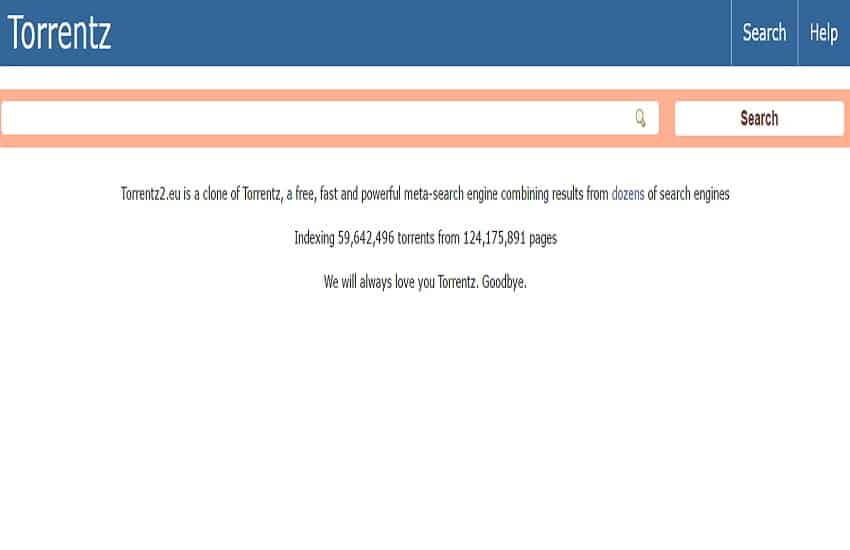
But there is a solution for every problem. Torrentz is back with a different avatar. The new search engine came with the link torrentz2.eu

torrentz2.eu

For the link, click here

Before this kickass was also banned,

Artem Vaulin was accused of distributing copied films, music and other content illegally. It worth around $1 billion. Recently Kickass torrents became the worlds biggest pirated media. It also achieved an alexa ranking of 69 worldwide.